
Integrating Faseeh with VAPI
This guide will help you integrate Faseeh’s Arabic text-to-speech into your VAPI voice assistants, enabling natural-sounding Arabic conversations in your phone calls and voice applications.Overview
Integrate Faseeh’s Text-to-Speech (TTS) system with VAPI Assistant for complete control over Arabic voice synthesis. Whether you need brand-specific voices, advanced audio quality, or cost optimization, custom TTS gives you the flexibility to use Faseeh’s high-quality Arabic voices while maintaining real-time performance. In this guide, you’ll learn to:- Set up webhook authentication between VAPI and your Faseeh TTS endpoint
- Configure your VAPI assistant to use Faseeh’s custom voice provider
- Understand the URL structure and parameters
- Handle edge cases and troubleshoot common issues
Prerequisites
Before you begin, make sure you have:- A Faseeh AI account
- A VAPI account with access to custom voice configuration
- Basic familiarity with VAPI Assistant configuration
How Faseeh TTS Integration Works
VAPI’s custom TTS system operates through a webhook pattern:1
Text conversion trigger
During a conversation, VAPI needs to convert text to speech
2
Request to Faseeh endpoint
VAPI sends a POST request to Faseeh’s TTS endpoint with text and audio
specifications
3
Audio generation
Faseeh generates Arabic audio and returns it as raw PCM data
4
Real-time playback
VAPI streams the audio to the caller in real-time
Authentication Setup
VAPI needs secure communication with your Faseeh TTS endpoint. Use Custom Credentials for authentication:Getting Your Credential ID
To use Faseeh TTS with VAPI, you need to create a Server Configuration in the VAPI dashboard. Follow these steps:1
Create a Faseeh API Key
First, create an API key in your Faseeh dashboard:
- Navigate to the Faseeh API Keys page
- Click “Generate New API Key” or “Create API Key”
- Give your key a descriptive name (e.g., “VAPI Integration”)
- Copy the API key immediately - you’ll need it in the next step
2
Create Server Configuration in VAPI
Now, create a Server Configuration in the VAPI dashboard: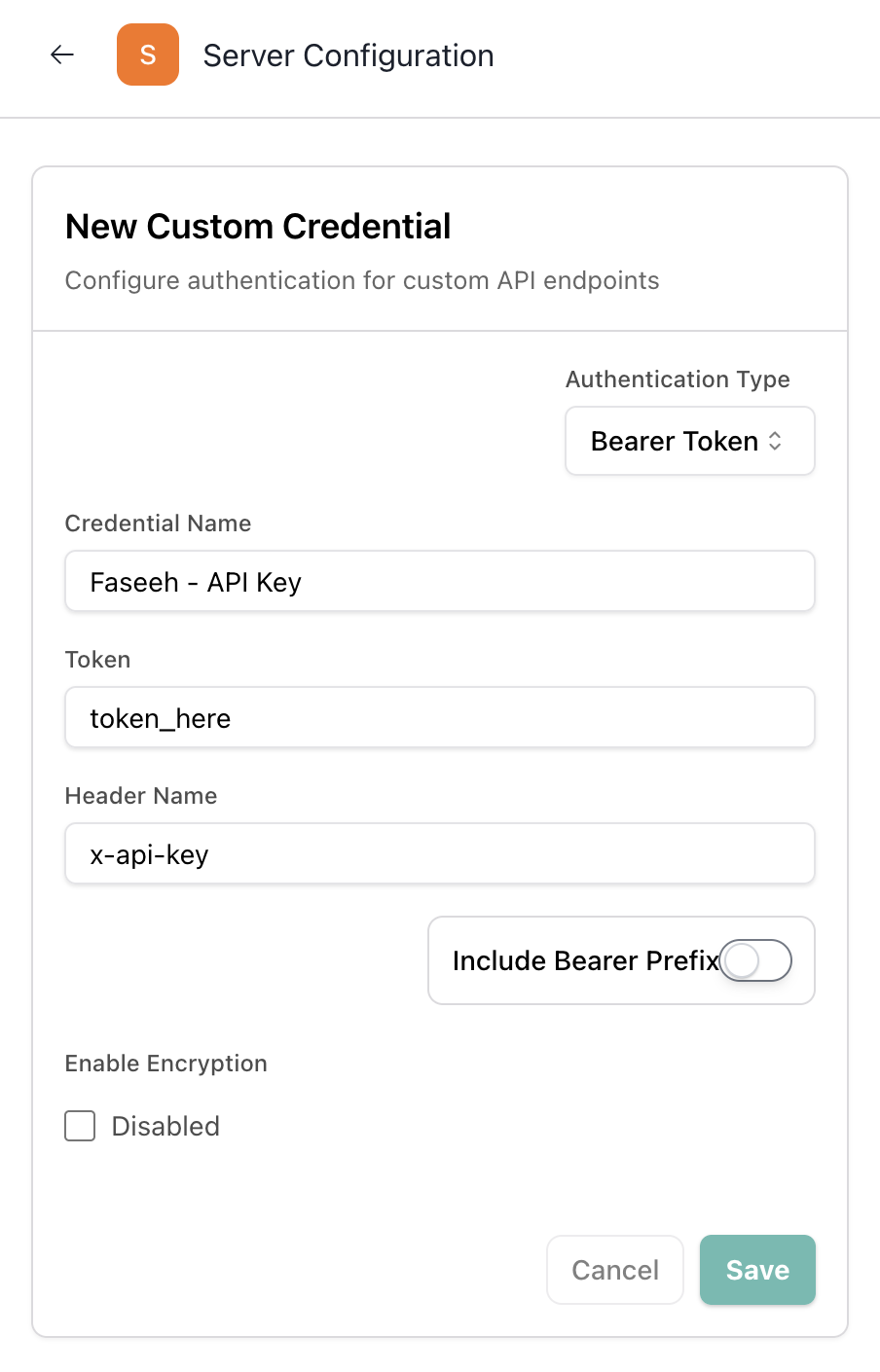
- Go to VAPI Custom Credentials
- Click “Create New Server Configuration” or “Add Configuration”
- Fill in the configuration details:
- Name: Give it a descriptive name (e.g., “Faseeh TTS”)
- Authentication Type: Select “Bearer Token”
- Token: Paste your Faseeh API key from Step 1
- Include Bearer: Disable this toggle (turn it OFF)
- Header Name: Set to
x-api-key
- Click “Save” or “Create” to save the configuration
3
Copy Your Credential ID
After creating the Server Configuration:
- You’ll see your new configuration listed in the VAPI dashboard
- Find the Credential ID (it will be a UUID like
d4a3a362-fe82-4255-b475-f30eefe8e75c) - Copy this Credential ID - you’ll use it in your assistant configuration
Using Custom Credentials in Your Assistant
Once you have your Credential ID, use it in your assistant configuration:Replace
d4a3a362-fe82-4255-b475-f30eefe8e75c with your actual Credential ID from the VAPI dashboard.URL Structure
The Faseeh TTS endpoint URL follows this structure:URL Parameters
Example URLs
Complete Assistant Configuration
Here’s a complete example of configuring your VAPI assistant with Faseeh TTS:Request and Response Formats
VAPI Request Structure
Every TTS request from VAPI follows this format:Required Fields
Response Format
Faseeh’s endpoint automatically returns:- HTTP 200 status
- Content-Type: application/octet-stream
- Raw PCM audio data in the response body
Audio Format Requirements
Faseeh automatically generates audio with these exact specifications:- Format: Raw PCM (no headers or containers)
- Channels: 1 (mono only)
- Bit Depth: 16-bit signed integer
- Byte Order: Little-endian
- Sample Rate: Matches the
sampleRatein the request
Choosing Your Voice
Available Voice IDs
To choose a voice for your assistant:- Visit the Faseeh Voice Library
- Listen to different voices to find the one that best fits your use case
- Note the voice ID (e.g.,
ar-najdi-male-2,ar-uae-female-1) - Use that voice ID in your URL
Model Selection
Choose between two models based on your needs:Similarity Parameter
Thesimilarity parameter controls voice consistency:
- 0.0 - 0.4: More expressive, creative, but can vary more
- 0.5 - 0.7: Balanced (recommended for most use cases)
- 0.8 - 1.0: Very consistent, less variation
Speed Parameter
Thespeed parameter controls speech rate:
- 0.7 - 0.9: Slower speech (clearer for complex content)
- 1.0: Normal speed (default)
- 1.1 - 1.2: Faster speech (for quick responses)
Testing Your Integration
Create a Test Call
Use VAPI’s API to create a test call that exercises your Faseeh TTS system:Troubleshooting
Request timeouts
Request timeouts
Symptoms: VAPI doesn’t receive your audio response, calls may dropCommon causes:
- Network connectivity issues between VAPI and Faseeh API
- TTS processing takes longer than configured timeout
- Server overload
- Increase
timeoutSecondsin your assistant configuration (default: 30) - Use
faseeh-mini-v1-previewfor faster processing - Check your network connection and Faseeh API status
Audio playback problems
Audio playback problems
Symptoms: No audio during calls, or distorted/garbled soundCommon causes:
- Incorrect URL format or parameters
- Invalid voice ID
- Authentication issues
- Verify the URL structure matches:
/vapi/{model_id}/{voice_id}?similarity={similarity} - Check that the voice ID exists in Faseeh’s voice library
- Ensure your credential ID is correct and contains a valid Faseeh API key
Authentication failures
Authentication failures
Symptoms: 401 Unauthorized responsesCommon causes:
- Invalid Faseeh API key in custom credentials
- Missing or incorrect credential ID
- API key expired or revoked
- Verify your Faseeh API key is valid at app.faseeh.ai
- Check that the credential ID matches your VAPI dashboard configuration
- Regenerate your API key if needed
High latency
High latency
Symptoms: Noticeable delays during conversationsCommon causes:
- Using full model instead of mini model
- Network latency between services
- High similarity values requiring more processing
- Switch to
faseeh-mini-v1-previewfor lower latency - Reduce similarity value (e.g., from 0.9 to 0.7)
- Consider geographic proximity of services
Invalid voice ID
Invalid voice ID
Symptoms: 404 Not Found or invalid voice errorsCommon causes:
- Typo in voice ID
- Voice ID doesn’t exist
- Wrong model/voice combination
- Visit Faseeh Voice Library to verify voice IDs
- Ensure voice ID matches exactly (case-sensitive)
- Check that the voice is available for your selected model
Best Practices
1. API Key Security
✅ DO:- Store API keys in VAPI Custom Credentials (not in code)
- Use different credentials for development and production
- Rotate keys periodically
- Hardcode API keys in assistant configuration
- Share API keys in chat or email
- Use the same key across multiple environments
2. Similarity Settings
- Customer Service: 0.7 - 0.8 (balanced and reliable)
- Professional Applications: 0.8 - 0.9 (very consistent)
- Creative Content: 0.5 - 0.6 (more expressive)
3. Fallback Configuration
Always configure a fallback voice provider to ensure call continuity:Next Steps
Now that you have Faseeh TTS integration working:- Explore Voices: Try different Arabic voices from the Voice Library
- Optimize Performance: Test both full and mini models to find the right balance
- Multi-language Support: Combine Faseeh for Arabic with other providers for English
- Monitor Usage: Track your API usage in the Faseeh Dashboard
Support
Need help?- Faseeh Support: Schedule a Meeting
- VAPI Support: VAPI Documentation
- Voice Library: Browse Available Voices